
Save time with ZoomMate, your AI assistant right inside the Zoom platform. Included with eligible paid Zoom plans.


Save time with ZoomMate, your AI assistant right inside the Zoom platform. Included with eligible paid Zoom plans.
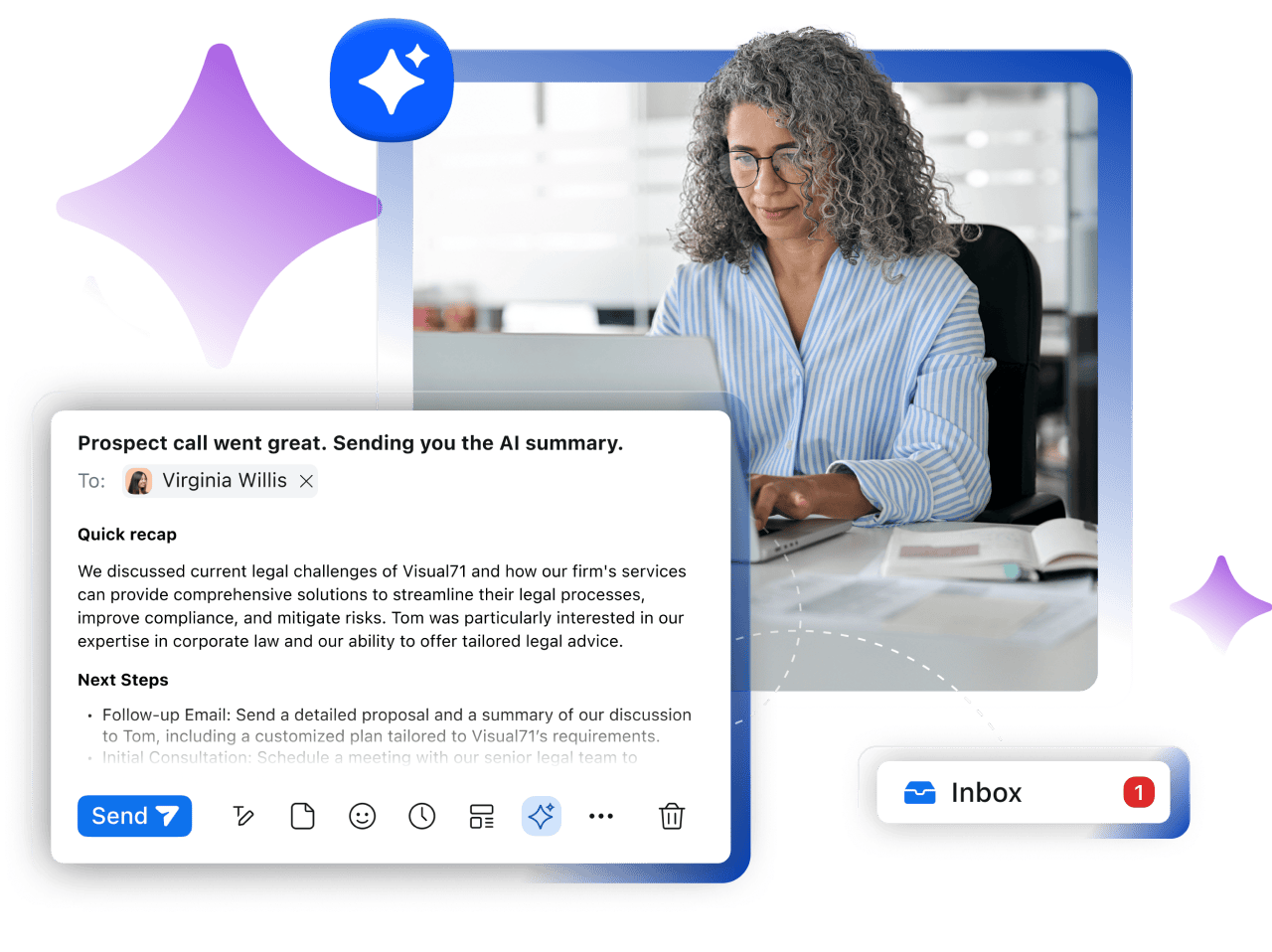



ZoomMate is included at no additional cost in most paid Zoom plans - you just need to turn it on. See how
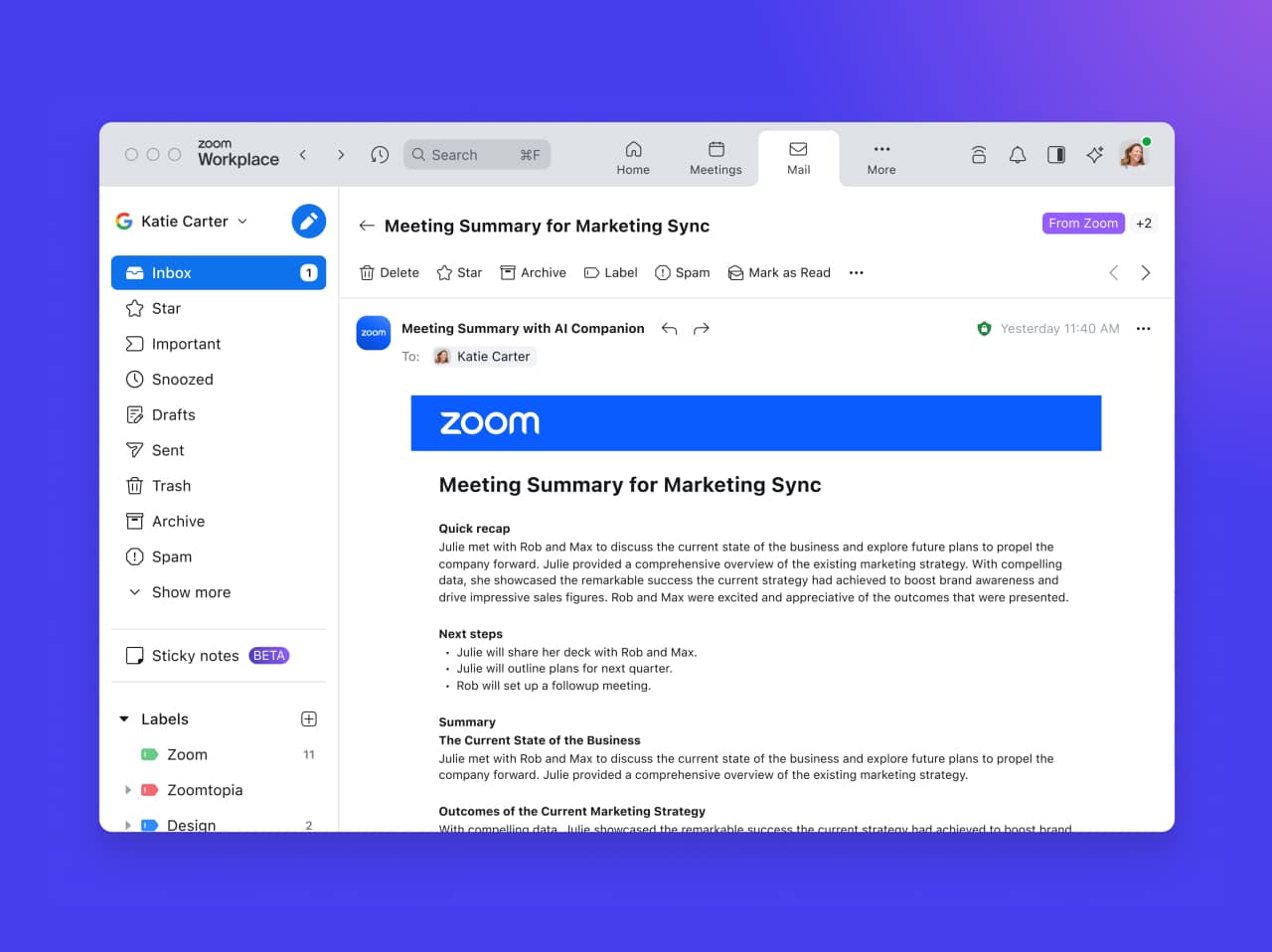
Get great notes without needing to take them, format them, and share them.

Works without recording your video meeting or phone call
Automatic summaries and next steps straight to your inbox (or Zoom Chat)
Turn summaries on or off at any time
Quickly digest meeting recordings
Meeting summary with ZoomMate is included with Zoom Workplace
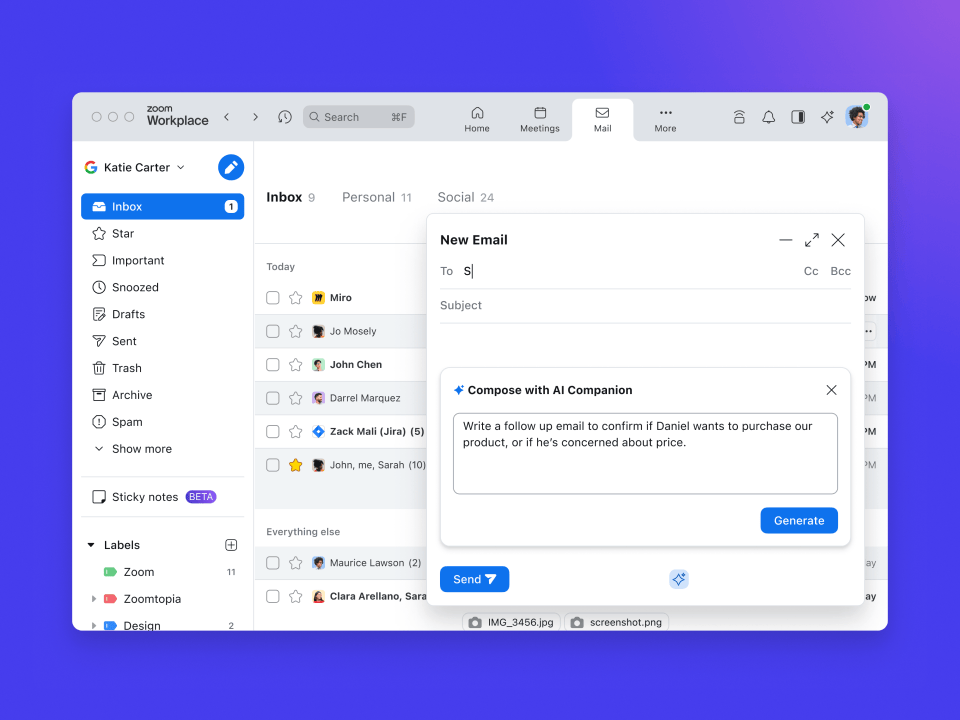
Our ZoomMate is here to help you reach Inbox Zero.
Summarize long email chains in a snap
Generate drafts of emails based on a prompt, desired tone, and length
Keep the human touch - easily edit ZoomMate drafts before sending
Mail compose and mail summarize with ZoomMate are included with Zoom Workplace
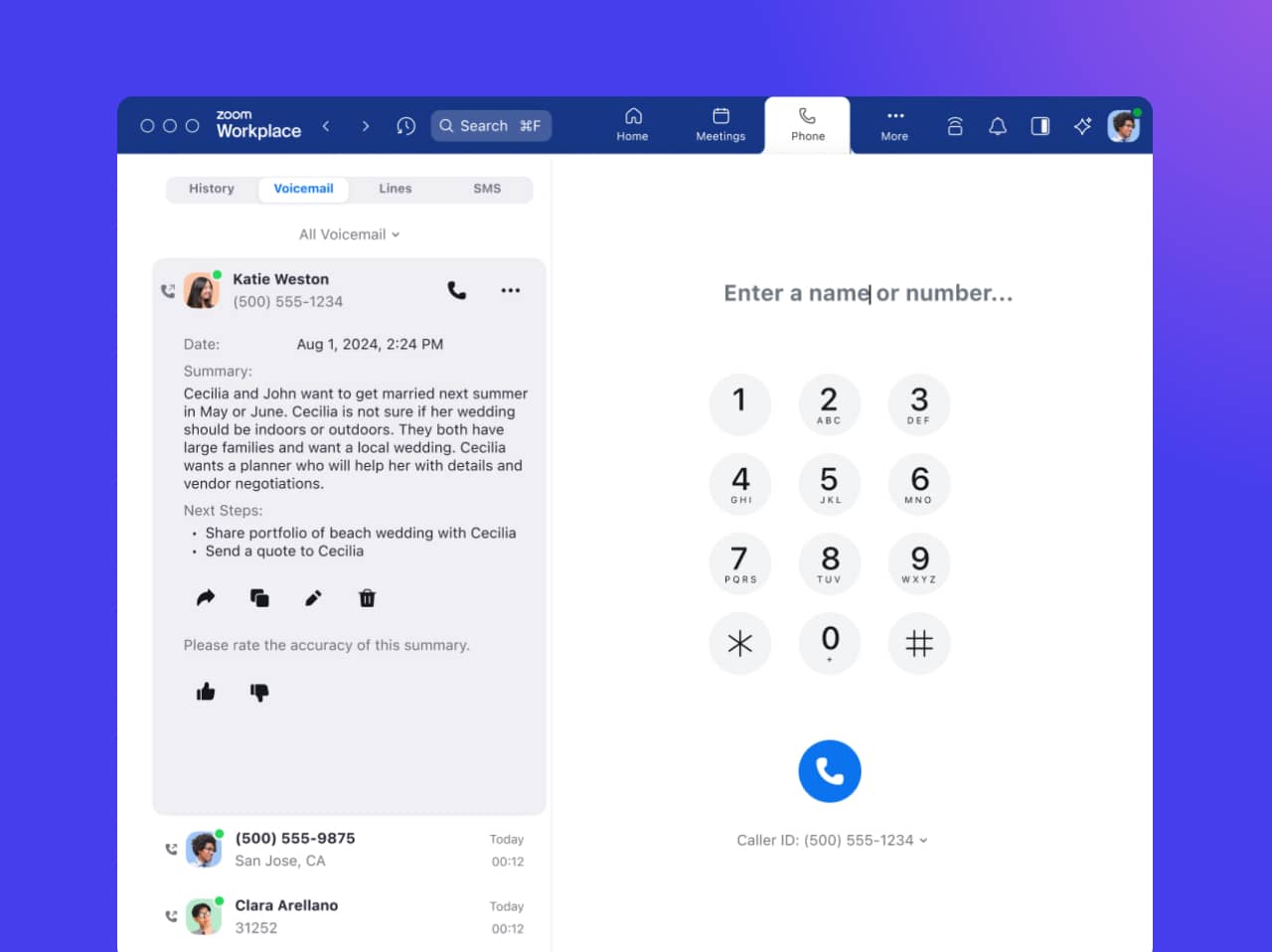
Forgot to bring a pen? Never fear, Zoom Phone is here!
Get summaries of your phone calls sent to your inbox or Zoom Chat
Extract tasks from your voicemails without needing to read a long transcript
Attend to urgent voicemails first by setting priority topics for ZoomMate
ZoomMate is included with Zoom Phone
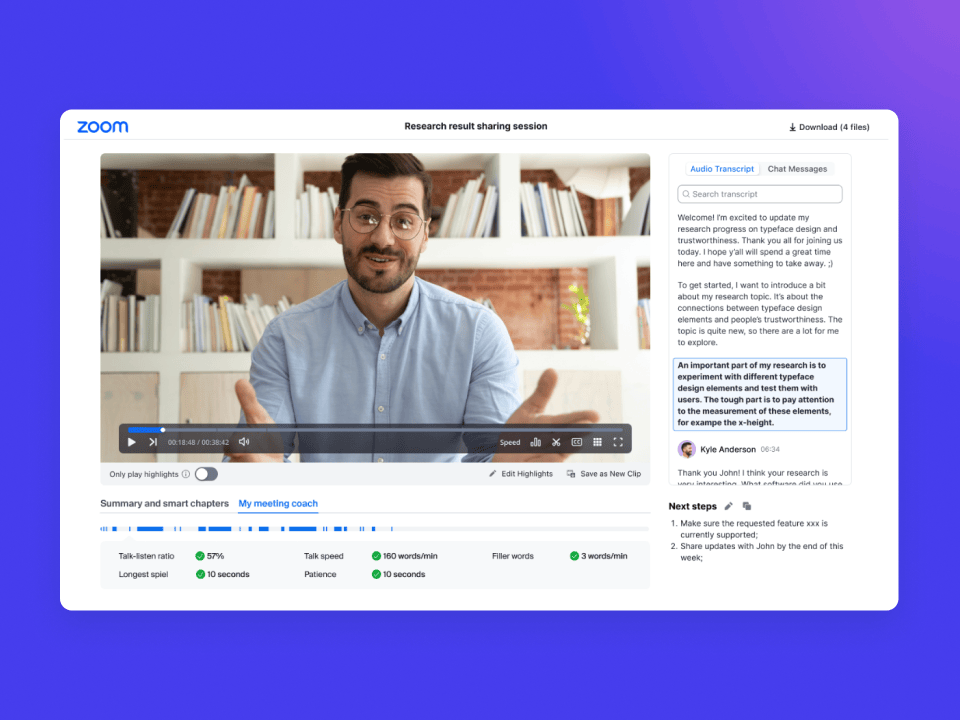
If you didn’t have time to go to the meeting, you don’t have time to sit through the whole recording.
Get your meeting recordings broken down into chapters by topic
Skip to the highlights with an option to watch only key moments
See a summary and transcript for each section, plus next steps for the whole meeting
Smart recordings with ZoomMate are included with Zoom Workplace

Bring your ideas to life with our AI assistant, ZoomMate.
Kickstart brainstorms with content generation in Zoom Whiteboard
Speed up event marketing by generating promotional images in Zoom Events
Image generated in Zoom Events
ZoomMate has been taking your meeting notes, but with the ZoomMate add-on for Zoom Workplace, you'll get an intelligent business partner working for you across third-party video conferencing platforms and applications. Buy now
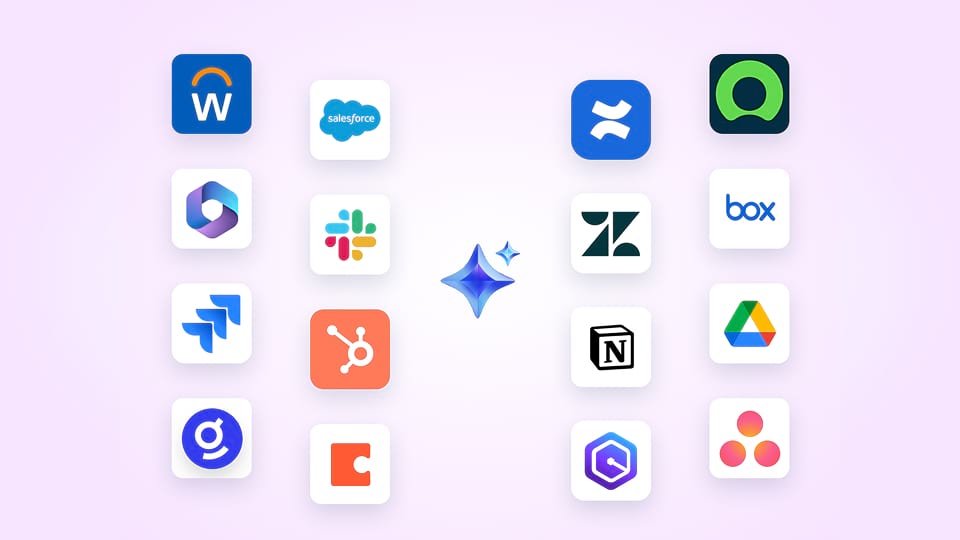
The ZoomMate add-on for Zoom Workplace allows you to customize your meeting summaries and connect ZoomMate to third-party applications to save you time and focus on tackling the big projects that make an impact.
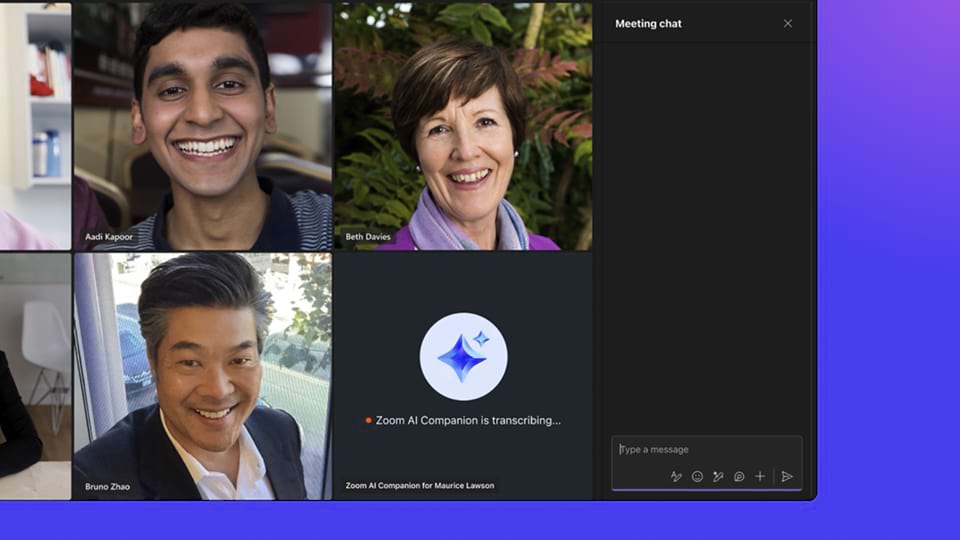
Let ZoomMate take notes for you so you can stay present on calls. With the Custom ZoomMate add-on, you can bring your notetaker to other meeting tools, such as Microsoft Teams and Google Meet, providing you with all your AI-generated meeting summaries and action items in one place.

Learn more about our AI-based solutions for sales and customer service.


ZoomMate is included at no additional cost with the paid services assigned to Zoom user accounts. ZoomMate may not be available for all regions or industry verticals.
For more information on how to set up ZoomMate, please review our getting started guide on our support site. If you are having trouble finding the ZoomMate icon in your Zoom products, check in your administrative portal on our website in case ZoomMate is disabled.
Zoom does not use any customer audio, video, chat, screen sharing, attachments, or other communications-like customer content (such as poll results, whiteboard, and reactions) to train Zoom’s or its third-party artificial intelligence models. For more information, check out this article on how Zoom handles data.
Yes, Zoom Meetings participants will need to acknowledge a pop-up notification when joining the meeting. There is a small indicator in the upper righthand corner of the Zoom window when ZoomMate is turned on. Zoom Phone participants receive verbal notice that ZoomMate is turned on.
Yes, ZoomMate features can be turned off for individual meetings or in the administrative portal.
If you have eligible paid services assigned to your Zoom account, you have access to those ZoomMate features. You (or your account admin if you do not have admin access) can turn ZoomMate features on or off in the administrative portal. The account administrator has the option to lock the enablement preferences.
You can disable ZoomMate with the following steps:
Sign in to the Zoom web portal.
Click “Settings.”
Click the “ZoomMate” tab.
Find the feature you want to disable and toggle it off to disable it (it will show as gray).
If a verification dialog displays, click “Disable” to verify the change.
You can turn off ZoomMate for a particular meeting:
Click the “ZoomMate” button in your meeting toolbar.
Click “Turn off all.”
You will see a pop up indicating which ZoomMate features you are turning off, with an opportunity to additionally delete meeting assets.
ZoomMate features are present across many of our products including Meetings, Zoom Chat, Mail & Calendar, Whiteboards, Phone, Contact Center, Events, and Sessions, with more products coming soon!
Access to ZoomMate features, like meeting summary and in-meeting questions, is at the discretion of the host, who can adjust these in settings. The host can decide if all participants, internal participants only, or just the host can use ZoomMate in meetings they host. If a participant clicks the ZoomMate sparkle icon in a meeting where ZoomMate is disabled, it will send a request to the host.
The ZoomMate page in the Zoom web portal allows you to view, edit, and share the summaries of meetings you hosted. To access your meeting summaries:
First, sign in to the Zoom web portal. In the navigation menu on the left panel, click “ZoomMate.” Under “My Summaries,” you can select from a list of meetings, search by meeting topic or meeting ID, or select a date range to find a specific meeting summary. Once clicked, the selected meeting summary will be displayed.
You will be able to choose from the following options:
If Continuous Meeting Chat was enabled for the meeting, the meeting summary will also be shared in the chat channel created by the meeting.
Meeting summaries can also be viewed in the meeting card or your calendar within the Zoom app.
ZoomMate is integrated in many of our products, including Meetings, Zoom Chat, Mail & Calendar, and more. You can find ZoomMate by looking for the sparkle icon which you can click to interact with ZoomMate features. Note that certain ZoomMate features can be enabled or disabled in Settings in the web portal under the “ZoomMate” tab.
Yes, ZoomMate uses our own proprietary large language models (LLMs) alongside models from leading companies such as OpenAI and Anthropic to power its capabilities.